Equipment
Using an iPad in the cockpit
GPS, offline charts, storage, temperature limits, charging, and mounting: what to verify when setting up an iPad for flying.
FlyHdg360 · · 6 min read
Device and software compatibility
ForeFlight publishes a compatibility table linking iPad models and operating-system versions to supported versions of its app. Check the exact generation of a used or existing iPad against that table before purchasing hardware or a subscription. A device that runs an older release does not necessarily support the current release.
Record the model, operating-system version, and app version as a combination. This is more useful than recording only “iPad mini” or “iPad Pro,” because those names cover multiple generations. Use the current vendor table for the purchase decision rather than a model list copied into an older buying guide.
The examples below use an iPad running ForeFlight. Menu locations, subscription features, and receiver compatibility are specific to that software; they should not be assumed to apply to another EFB application.
GPS reception does not require a cellular plan
Wi-Fi + Cellular iPads have an internal GPS receiver. Wi-Fi-only iPads do not. ForeFlight states that an active cellular data plan is not required to obtain a GPS position or to use the app. A Wi-Fi-only iPad can receive position information from a compatible external GPS source.
These are separate capabilities: GPS supplies position; an internet connection supplies online services; downloaded charts supply stored reference information. Purchasing cellular hardware does not mean purchasing a cellular subscription is necessary for GPS use. Conversely, downloading charts does not give a Wi-Fi-only iPad an internal GPS receiver.
For a Wi-Fi-only device, include the compatible receiver and its connection requirements in the equipment plan. Verify the actual position source and connection on the ground before relying on the moving-map display.
Source: ForeFlight: iPad and iPhone GPS
Charts must be downloaded for offline use
ForeFlight requires charts, procedures, and airport diagrams to be configured and downloaded for offline access. Its download controls are under More > Downloads, where the user selects data types and geographic coverage.
After downloading, check both completion and the information’s effective dates. Then disconnect from the internet on the ground and open the charts and procedures needed for the trip. This verifies availability on that device; it does not establish that the selected coverage is sufficient for every possible route change.
Repeat the availability check on any backup device. A subscription or a successful download on the primary iPad is not evidence that the same files are stored on the backup.
Pack has a defined coverage area
ForeFlight’s Pack feature checks for missing information within 25 nautical miles on either side of the planned route and within 50 nautical miles of the departure and destination airports. Its suggestions depend on the data selections in Downloads.
That coverage has a practical limit: a diversion beyond the checked area may require information that Pack did not select for the original route. Review the coverage for likely alternatives and download additional areas when needed. Changing a route should prompt another coverage check.
Pack is a route-based download tool. It does not independently determine every destination or chart a pilot might need.
Downloaded weather does not update itself
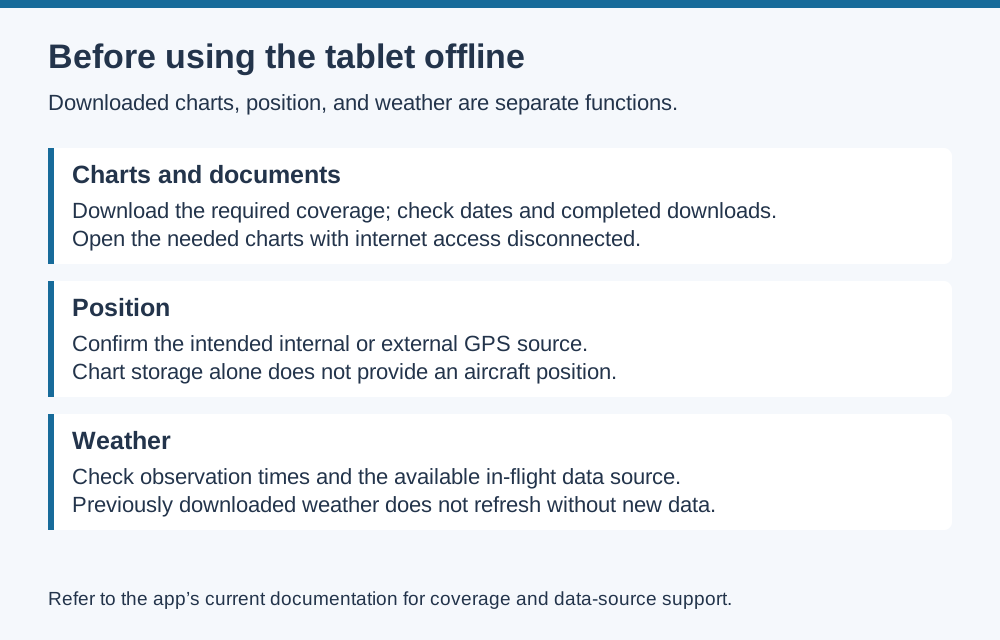
ForeFlight states that weather saved through Pack is a snapshot and does not update without a data source. Stored METARs, TAFs, and other downloaded products remain subject to their observation, issue, and validity times.
The distinction matters when a weather page continues to display after the internet connection is lost. Its presence on screen is not evidence that new information is arriving. Check the product timestamps and the status of the connected weather source.
ForeFlight also states that radar maps, satellite maps, and Imagery are not downloadable through this offline-weather workflow. Do not plan to use those as stored, continuously available products merely because they were visible while connected before departure.
Source: ForeFlight: Weather access without an in-flight data source
Storage requirements depend on selected coverage
The space used by ForeFlight varies with geographic regions, chart types, terrain, documents, and additional content. The app’s installed size alone does not represent the storage needed for offline flight use.
ForeFlight notes that some sizes shown in Downloads are compressed sizes; installed files can be larger. Upcoming chart cycles also require additional space before the old cycle is removed. Size the device for installed content and updates, along with the other applications and files it will hold.
For an existing iPad, use its actual storage usage after loading the intended coverage as the starting point. For a purchase, use the vendor’s current regional estimates and allow room for additional coverage. A universal storage recommendation would conceal these differences.
Apple specifies temperature limits
Apple specifies an ambient operating range of 0–35°C (32–95°F) for iPads and a storage range of −20–45°C (−4–113°F). These are different limits: the storage range does not describe temperatures at which the device is intended to operate.
When internal temperature becomes too high, charging can slow or stop, the display can dim or go black, and performance can decrease. Apple identifies prolonged direct sunlight as a condition to avoid.
For cockpit use, account for sun exposure when evaluating placement and do not leave the device in a hot parked aircraft. If a temperature warning appears, Apple’s recovery guidance is to turn the device off, move it to a cooler location away from direct sunlight, and allow it to cool. A spare device exposed to the same heat may face the same limitation.
Source: Apple: iPad operating temperatures and thermal protection
Check the complete charging connection
Apple’s charging troubleshooting identifies the power source, adapter, cable, and device temperature as items to check. If charging fails, its guidance includes trying another adapter or cable and confirming the device is within acceptable temperatures.
For an aircraft setup, document the power source and the adapter and cable specifications. Verify compatibility with the iPad and the approved aircraft power arrangement. Connector fit alone is insufficient evidence of a suitable installation.
During an appropriately arranged ground check, record battery percentage at the start and end, elapsed time, and the display and application settings used. This provides a result for that particular setup and test duration. It should not be presented as a guarantee of endurance under different conditions.
EFB guidance and mounting
FAA AC 91-78A provides guidance for EFB use in Part 91 operations. It is advisory and is not itself a regulation. Its criteria include current, valid information and no interference with aircraft equipment or systems. An EFB does not replace navigation, communication, or surveillance equipment required by Part 91.
The AC calls for assessment of display and lighting, placement, workload, shutdown, and failures. It distinguishes portable and installed EFB arrangements and refers to AC 20-173 for installation details.
Check the proposed attachment and power arrangement against the applicable guidance with a qualified installer or maintenance professional. Retail availability and tablet-size compatibility do not establish approval for installation in a particular aircraft.
Setup record
Keep a short record of the configuration so replacements and updates can be checked against it. Useful entries are:
- Exact iPad model, operating-system version, and EFB app version.
- Internal or external GPS source and the required connection.
- Downloaded regions, chart types, effective dates, and offline verification.
- Available storage after installing the intended coverage.
- Power source, adapter, cable, and results of the ground check.
- Mount or storage arrangement and any installation documentation.
- Backup information source, its preparation status, and how it can be accessed.